← HomeUNIVERSAL TRAINING▶ Watch with narration
CREATIVE POWER · LEARNING HUB

Connect your data,
use it with confidence

Web App training guide
From device setup to dashboards and the OpenAPI
Start the 22 chapters →▶ Learn with narration (Thai audio)Open the original PDF guide
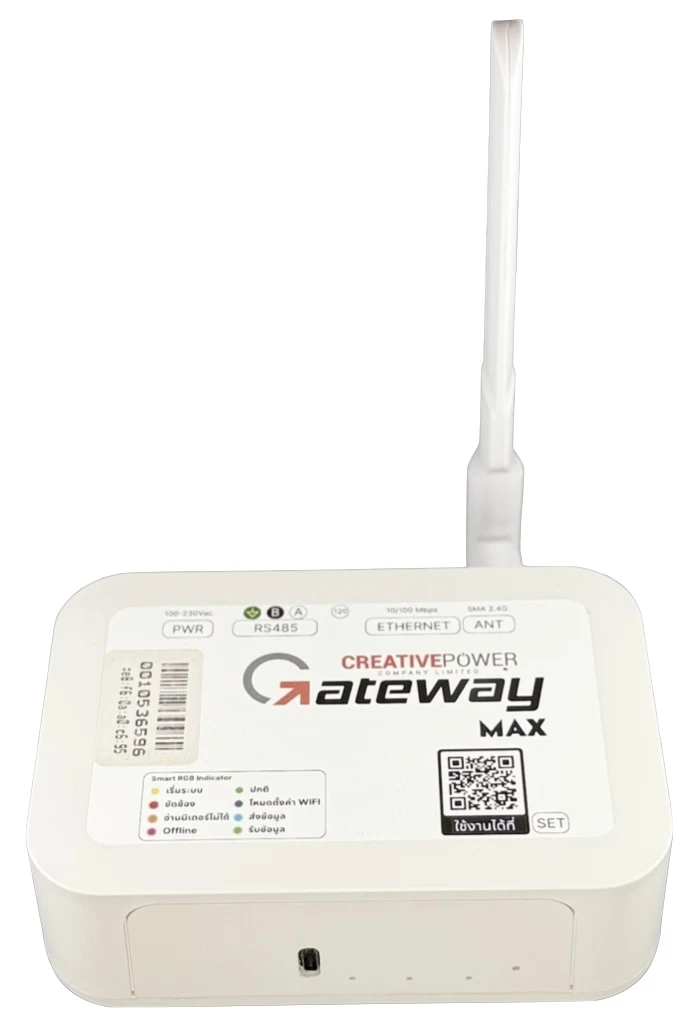
Gateway MaxGateway Max · Modbus RTU → Web App

Choose a topic

UNIVERSAL GATEWAY · 01 / 22

Universal Gateway overview

From the device to data on the web

  • Reads device data via Modbus RTU over RS485
  • Connects to the SaaS / Web App and Cloud Sync
  • Learning path: users → gateway → Data Profile → alerts → export
Gateway MaxGateway Max · Modbus RTU → Web App
UNIVERSAL GATEWAY · 02 / 22

Limits you need to know

Plan the number of tags and the read cycle

  • Ethernet 10/100 Mbps or WiFi 2.4 GHz 802.11 b/g/n
  • RS485 2400–19200 bps • up to 245 tags (2-word)
  • The manual states a 15-second update interval, but it depends on the number of tags
  • Example at 2400 bps: 0.38 s/tag × 245 ≈ 93.1 s per cycle
  • Type-C 5V 0.15A / AC 90–240Vac 0.05A
  • Operating conditions per the manual: −40 to 65°C • designed for 24/7
Gateway MaxGateway Max · Modbus RTU → Web App
UNIVERSAL GATEWAY · 03 / 22

Sign in

Use the account registered with Creative Power

  • Open https://cplservice.com/universal
  • Use the email registered with our staff after purchasing the product
  • Sign in before managing users and devices
UNIVERSAL GATEWAY · 04 / 22

Manage users

Users → add a new user

  • Once the main account is registered, add users within your company
  • Open Users and choose to add a new user
  • Fill in the details and set the role before saving
  • Edit or delete users with the Action button in the list
UNIVERSAL GATEWAY · 05 / 22

Choose the right role

Admin Company / Users

  • Admin Company: sets the company name, logo and users
  • Users: can only create, view and share dashboards
  • Check the role before handing an account to a user
UNIVERSAL GATEWAY · 06 / 22

Check gateway status

Gateway Management

  • Open the gateway list to check devices
  • Check the Online / Offline status and the time shown
  • Offline: check power and network connection before checking the data
  • Offline is not the same as a measured value of zero
UNIVERSAL GATEWAY · 07 / 22

Add a gateway

Gateway → + Add New Gateway

  • Open the Gateway menu and choose + Add New Gateway
  • Fill in the device details in the form and check before saving
  • One gateway uses one Baudrate and Serial Config
  • Devices on the same line must use matching communication settings
UNIVERSAL GATEWAY · 08 / 22

Prepare a Data Profile

Specify what to read, and from which device

  • Each device read must have a different Slave ID
  • Baudrate and Serial Config must match the gateway
  • Go to Data Profile → choose the gateway → Add Data Profile
  • Have the device's Modbus manual ready before setting addresses
UNIVERSAL GATEWAY · 09 / 22

Define the values to read

Name, unit, command and data format

  • Profile Name (Parameter): display name, also used to reference the variable
  • Parameter Unit: the variable's unit
  • Function Code: 01 Coil / 03 Holding / 04 Input
  • Start Address, Data type, Quantity and Byte Order: follow the device manual
UNIVERSAL GATEWAY · 10 / 22

Convert data with scaling

From raw values to working units

  • Multiply Factor: result = Raw × Factor
  • Example: Raw 0–65535 → 0–100% uses Factor ≈ 0.001525902
  • Enable Linear Scaling (Slope): set ranges for a linear conversion
  • Check converted values against real values before using them for alerts
UNIVERSAL GATEWAY · 11 / 22

Alarms on the dashboard

Set colours by value level

  • High-High / Low-Low = Critical
  • High / Low = Warning
  • Alarms in the Data Profile show colours by condition on the dashboard
  • To send messages, also set up Notifications
UNIVERSAL GATEWAY · 12 / 22

Create a Notification Provider

Prepare the sending channel before creating messages

  • Open Notification Providers → Create Provider
  • Choose Email or Telegram on the original screen
  • The manual mentions Discord / Line Messaging, but the original screen still shows Coming Soon
  • Set the name and connection details • keep passwords / tokens secret
UNIVERSAL GATEWAY · 13 / 22

Email / Telegram examples

Details for connecting the provider

  • Email: prepare the SMTP mail server's Username / Password
  • Enter the SMTP connection settings as in the form
  • Telegram: prepare a Bot Token for the provider
  • The recipient's Chat ID is set in the alert recipients section
UNIVERSAL GATEWAY · 14 / 22

Create a Notification Message

Condition or Scheduled

  • Open Notification Message to create a message
  • Condition: choose the send interval, parameter and aggregation
  • Aggregation Type: Last (latest value) / Min / Max
  • Choose greater than, less than or between, and set the threshold
  • Scheduled: choose time-based alerts and set the time in the form
UNIVERSAL GATEWAY · 15 / 22

Write a message template

Set the subject and content to send

  • Set the Subject / Title and Message in the form
  • Use the variables the system shows on the template settings page
  • Check parameter names and text before saving
  • Avoid putting passwords or tokens in messages
UNIVERSAL GATEWAY · 16 / 22

Set alert recipients

Choose the provider that matches the destination

  • Email: set To and CC / BCC as needed
  • Telegram: set the recipient's Chat ID
  • Choose the prepared provider for the channel
  • Check the destination before going live
UNIVERSAL GATEWAY · 17 / 22

Export and review history

Data is kept in the system for 45 days

  • Open the export / Report & Analytics page
  • Choose the gateway, Data Profile and date range in the form
  • Check the line chart and the sample data table
  • Export and check the file • back up before 45 days pass
UNIVERSAL GATEWAY · 18 / 22

Create a dashboard

Dashboard = a screen that groups the widgets for each job

  • Dashboard menu → click Add New Dashboard
  • Choose the company / customer (Partner) and set the Dashboard Name
  • Add an icon (Font Awesome), e.g. fas fa-chart-pie
  • Click Create Dashboard, then add widgets
UNIVERSAL GATEWAY · 19 / 22

Add widgets

Widget = one value from a gateway + Data Profile

  • On the dashboard page click Add Widget and set the Widget Name
  • Data Source: choose the gateway, then the Data Profile
  • Widget Type: Text Display / Gauge Meter / Historical Chart
  • Gauge: set Min–Max · Chart: choose Line / Bar / Radar and the X-axis range
UNIVERSAL GATEWAY · 20 / 22

Share a dashboard

Share with users in your company, or open a public link

  • Click Edit Dashboard
  • Access: tick Allow for users in the same company
  • People it's shared with can view, but not edit or delete
  • Public Share: anyone with the link can view — enable only for pages that can be public
UNIVERSAL GATEWAY · 21 / 22

OpenAPI to connect other systems

API Key = Access Key + Secret Key

  • Settings → API Keys → Create API Key (name it after the project · admin role)
  • You get an Access Key + Secret Key — the Secret Key is shown only once
  • Test in Data Query: enter the key, table, device_id and date range
  • Send headers x-api-access-key / x-api-secret-key · never disclose the Secret Key
UNIVERSAL GATEWAY · 22 / 22

Check readiness before handover

Review every step

  • Users and roles correct • gateway connected
  • Unique Slave IDs • matching Baudrate / Serial Config
  • Data Profile reads values and scaling is correct
  • Alarms, provider, message and recipients complete
  • Export works, with a backup plan within 45 days