
INSTALLATION GUIDE

The hub that talks to meters over RS485 and sends data to the cloud · 3 hardware models: Max / Eco / Mini · the installed firmware decides which product it is

Document no. CPL-UM-GW100-EN/THRevision 0.92Date 2026-10-21Prepared by KiratiApproved by Kirati · R&D Manager
01

Compare the 3 models

SpecificationMAXECOMINI
MCUESP32-S3-WROOM-1U-N16R8
Flash 16 MB · PSRAM 8 MB
ESP32ESP32-C3
EthernetW5500 · 10/100 Mbps (RJ45)W5500 · 10/100 Mbps—
Wi-Fi802.11 b/g/n 2.4 GHz · SMA antenna802.11 b/g/n 2.4 GHz802.11 b/g/n 2.4 GHz
RS485Same on all models: 1200–19200 bps · DL/T645-2007 and Modbus RTU
Default 9600 8N1 (8 data bits · no parity · 1 stop bit) · address range 1–247
RS485 protectionYLPTEC TDA51S485HC
Isolation 3750 Vrms · 15 kV ESD on bus pins (HBM)
YLPTEC TDA51S485HC
Isolation 3750 Vrms · 15 kV ESD on bus pins (HBM)
TVS diode 6.5 A
Main power100–230 Vac (PWR terminal)6–30 Vac/dc6–30 Vac/dc
USB-C 5 VYes · 0.3 AYes · 0.3 AYes · 0.15 A
The rated current is what the unit draws from USB-C (not what it supplies) · USB-C is for testing, flashing firmware and reading logs — do not use it as the main power supply in service · measured with an AC/DC watt meter at the input
Max meters per gateway2006030
Update cycle (full meter count, 2400 bps)≈ 76 s≈ 23 s≈ 11 s
Calculated from ≈ 0.38 s/meter at 2400 bps · at 9600 bps (default) Max ≈ 19 s, see the table in section 04
EnclosureTakachi PF15-5-10W · 150 × 100 mm · flame-retardant ABS UL94 V-0Phoenix Contact EH 70 F · DIN rail, 70.2 mm wide · ABS UL94 HB50 × 45 × 45 mm
MountingDesktop / wall mountDIN rail (EN 60715) or wall mountDIN rail (EN 60715) or wall mount

Sources: ProductSpecification_TH.pdf (Gateway) — the old "max 15 seconds" wording is retired because it contradicts 0.38 s/meter · Max device label · Takachi PF15-5-10W and Phoenix Contact EH…F enclosure drawings

02

Meet the Gateway Max

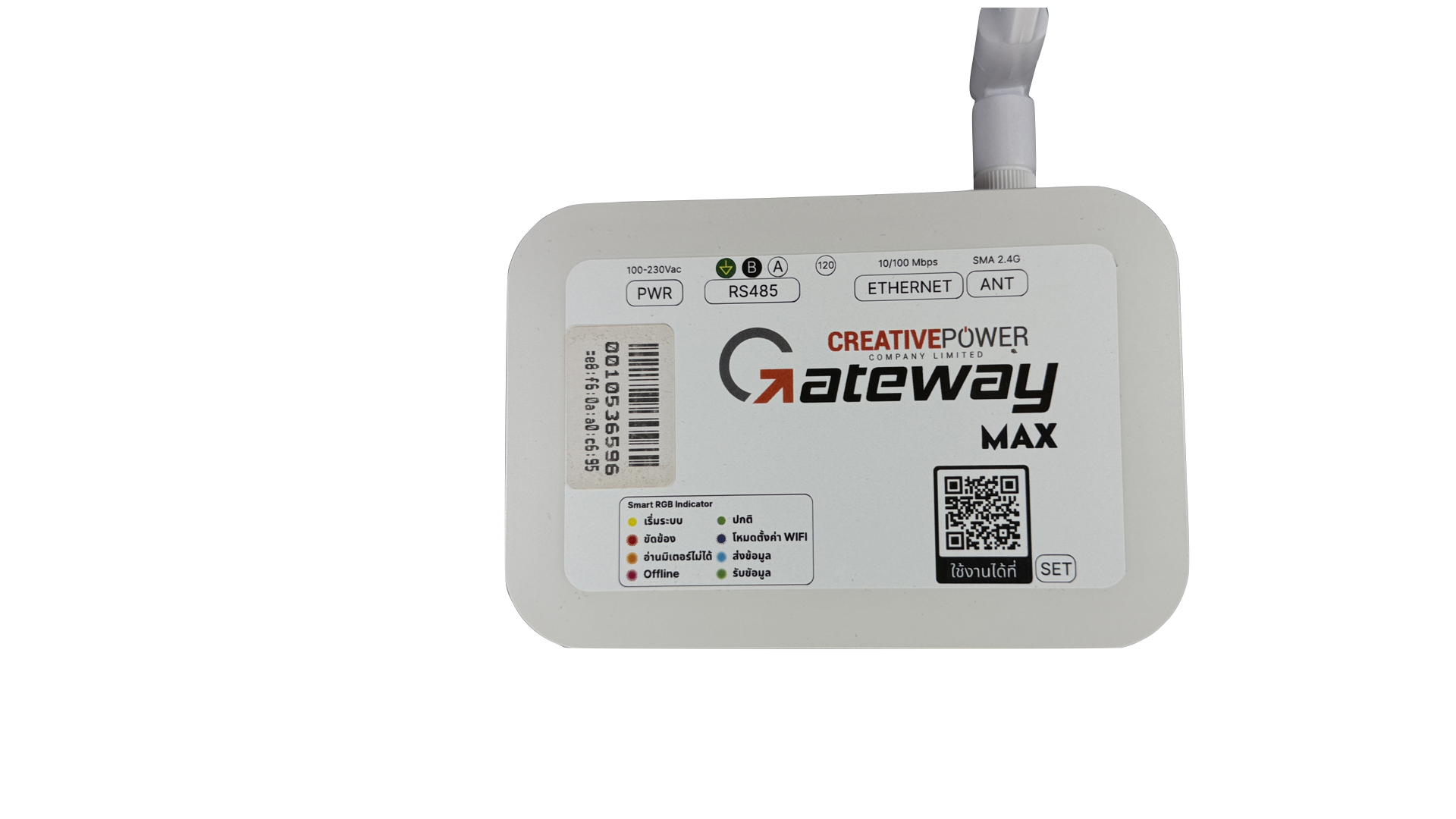
Gateway Max top: port labels, logo, status light, SET button and QR
Top · port labels · status light · SET button
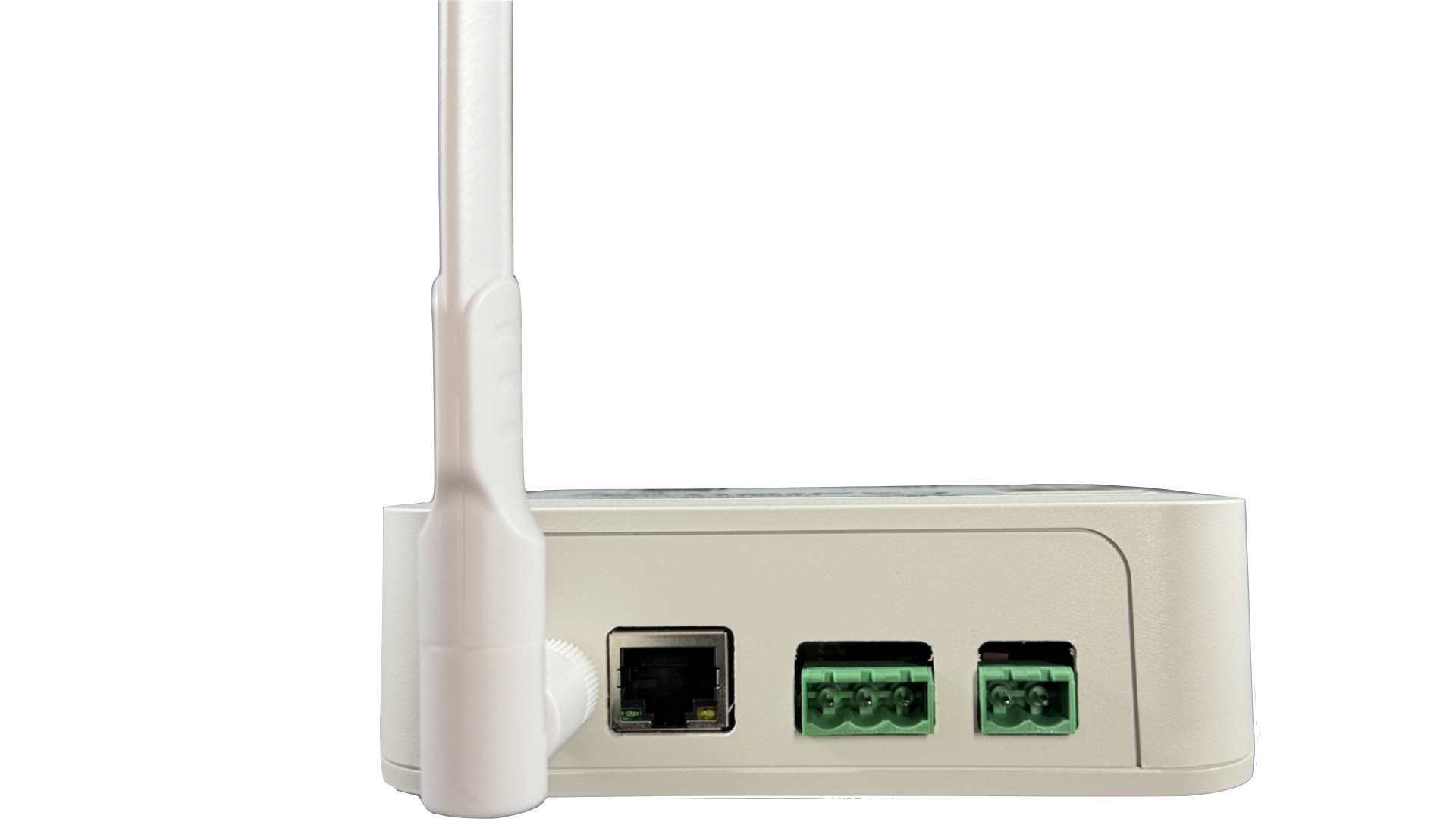
Port side: antenna, RJ45, RS485 terminal and PWR terminal
Port side · ANT · ETHERNET · RS485 · PWR
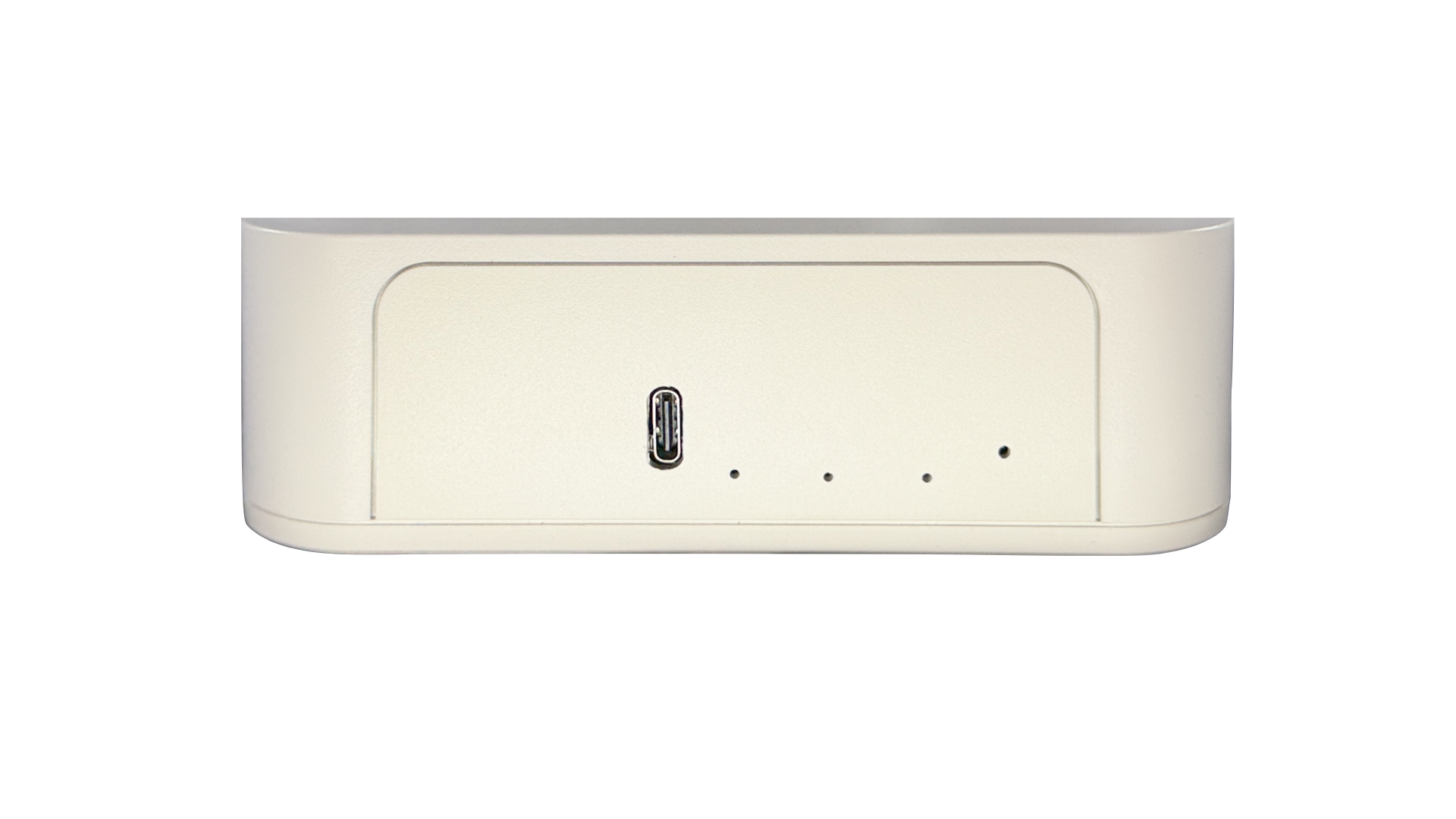
Back: USB-C port, red PWR light, RGB light and SET button hole
Back (left→right) · USB-C 5 V · PWR light (red) · RGB light · SET button

Port panel (viewed from the front)

Gateway Max port panel, front view Left to right: 2.4 GHz SMA antenna, 10/100 RJ45 Ethernet port, 120-ohm termination switch, 3-pin RS485 terminal (A, B and shield ground), 2-pin PWR terminal 100–230 Vac 120 Ω ANTETHERNETRS485PWR SMA 2.4 GHzRJ45 10/100 Mbps100–230 Vac AB⏚LN A · B · shield

Smart RGB Indicator

per the unit label

The RGB light has 8 states — see colours, blink patterns and checks in section 07

SET button and QR

Hold the SET button for about 5 seconds to enter Wi-Fi setup mode (blue light), then connect to the gateway's Wi-Fi to configure it · the SET button is in the hole on the back next to the RGB light; press it with a pointed tip

The back has the red PWR light (powered) and the RGB status light

Scan the “Use it at” QR to open the web app of the installed product

The side sticker shows the Device ID (barcode) and MAC address — take a photo to use for registration

The switch 120 between ETHERNET and RS485 turns the RS485 bus 120 Ω termination on/off

03

Operating environment

Operating temperature
−10 … +50 °C

Limited by the meters used with it (Class B / LV4) · −40 … +65 °C

Enclosure material
ABS UL94 V-0

Flame-retardant (Max) · Eco uses ABS UL94 HB

Operating humidity≤ 90 %RH non-condensing
Storage temperature−40 … +75 °C
IP ratingIP54
04

Installation and wiring

Power

  • Max: Connect L / N 100–230 Vac to the PWR terminal through a breaker; always switch off before wiring
  • Eco / Mini: 6–30 Vac/dc to the power terminal
  • All models: USB-C 5 V for testing, firmware updates and viewing logs

Network

  • Ethernet (Max/Eco): Both models use the W5500 chip and the same firmware · DHCP by default · Static IP can be set with the web tool (section 05) · the W5500 supports IPv4 only
  • Wi-Fi 2.4 GHz: Max/Eco use it as backup when Ethernet is absent (automatic failover) · Mini is Wi-Fi only
  • Allow outbound internet to the product server per the table in section 06

RS485 to meters

  • Connect A–A, B–B never swap them · connect the shield to the ⏚ terminal at the gateway end only
  • Run the cable continuously as a daisy chain no star branching
  • The end of the line needs a 120 Ω resistor — if the gateway is at the end of the line, turn on the 120 switch on the gateway (between ETHERNET and RS485)
  • Signal wires must be fitted with cord ends
Gateway Mini: RS485 has no isolation (TVS diode only) — use with at most 30 meters inside the same cabinet only · never run RS485 outside the cabinet, between buildings or outdoors — use Max or Eco instead
CableDistanceDevices per segment
0.75 sq.mm Twist pair + ShieldGateway → last device ≤ 600 m≤ 30 devices
0.5 sq.mm Twist pair + Silver alloy≤ 20 m per segment · ≤ 120 m in total≤ 30 devices
RS485 daisy-chain wiring The gateway connects A (white), B (black) and the shield to the first meter, then on to each next meter in turn. At 30 devices or 600 metres, add a repeater and continue with the next segment. Fit a 120-ohm resistor at the very end. Gateway Repeater 120 Ω A white · B black · shield (grounded at one point) Segment 1 · ≤ 30 devices / ≤ 600 mNext segment

Data update time (rounded up)

Baud rate30 meters (Mini full)60 meters (Eco full)200 meters (Max full)
2400 bps≈ 11 s≈ 23 s≈ 76 s
9600 bps (default)≈ 3 s≈ 6 s≈ 19 s
19200 bps≈ 2 s≈ 3 s≈ 10 s
Clearance from power cables
0.1 mm / V

0.75 sq.mm cable: 220 V system → minimum 22 mm · recommended 25 mm (1 inch)
0.5 sq.mm cable uses 0.25 mm/V (220 V → 55 mm)

LNG ≥ 25 mm (1 inch) RS485 220 V power wiresSignal cable

Repeater calculation example

200 meters, 5 m apart, with a 10 m crossing every 10 meters, using 0.75 sq.mm cable alongside 220 V in a wireway

  1. Total length 200 × 5 + (200 / 10) × 10 = 1,200 m → ÷ 600 = 2 segments
  2. Meter count 200 ÷ 30 = 6.7 → 7 segments needed (take the larger of steps 1 and 2)
  3. Power cable clearance 220 × 0.1 = 22 mm

Result: 7 segments separated by 6 repeaters and keep at least 22 mm (25 mm recommended) from power wires in the wireway

GatewaySegment 1≤ 30 devicesR1Segment 2≤ 30 devicesR2Segment 3≤ 30 devicesR3Segment 4≤ 30 devicesR4Segment 5≤ 30 devicesR5Segment 6≤ 30 devicesR6Segment 7≤ 30 devices200 meters · 0.75 sq.mm cable · R = Repeater
05

Firmware = Product

The same hardware becomes a different product with different firmware and uses a different web app · Max and Eco use the same firmware files

CDM Gateway

  • Reads CDM meters over RS485: DL/T645-2007 and Modbus
  • Sends data to the cloud over HTTP REST and MQTT · tries TLS (443) first, falls back to port 80 if it cannot connect · receives commands from the Web App such as power cut/reconnect
  • Meters per model: 200 / 60 / 30
  • For apartments, rental rooms and markets that bill for electricity

Universal Gateway

  • Reads general Modbus RTU devices using a register profile from the web app
  • Sends data over HTTPS (certificate checked) · up to 245 tags (2-word) · update cycle down to 1 second
  • Register the Device ID and set up the register profile in the web app before it starts sending data

Install / update firmware (technicians)

Use the web tool cplservice.com/rd/fw

  1. Connect the gateway's USB-C to a computer
  2. Open the link in Chrome or Edge and choose the product
  3. Follow the steps on the page to the end, then check that the status light turns green

Close any other program holding the gateway's USB port before you start

IP settings

Use the web tool cplservice.com/rd/gateway/staticip to set a Static IP or switch back to DHCP

Get the IP, gateway, subnet and DNS from the site's network administrator

06

Network table for IT

The Gateway opens the connection to the server, then data flows both ways (in-out) over it · uses the site's DHCP (or Static IP) and DNS · REST tries TLS 443 first, then falls back to 80

ProductDestination (hostname)PortProtocolDirection
CDM Gatewaydbs5.cplservice.com443 / 80RESTin-out
CDM GatewayNot fixed (load balanced)21880MQTTin-out
Universal Gatewaydbs6.cplservice.com443 / 80RESTin-out
Universal GatewayNot fixed (load balanced)21880MQTTin-out
All productsNetwork DNS53UDP/TCPOutbound
All products (time)dbs5.cplservice.com/servertime443HTTPSOutbound

The MQTT server is chosen automatically by load balancing, so there is no fixed hostname — allow outbound port 21880 to any destination

07

Check before handover, and troubleshoot by status light

01 / Power

PWR terminal tight, no exposed copper, light changes from yellow (starting) to green (normal)

02 / Network

RJ45 LINK light on, IP obtained, no pink light (offline)

03 / RS485

A/B not swapped, shield connected at one end, 120 Ω at the end of the line, no orange light (cannot read meters)

04 / Registration

Record the Device ID / MAC from the sticker and bind it to the project in the web app

05 / Data reaches the cloud

The light-blue light (sending) flashes regularly and meter values update in the web app

06 / Environment

Site is dry and not above 50 °C, antenna upright, no strain on terminals

All 8 RGB status states

ColourPattern (solid / blinking)MeaningWhat to check
YellowSolidStarting upIf stuck for more than 1–2 minutes: check power · read the log over USB-C
GreenSolidNormal—
Light blueBlinks once, then back to greenSending dataShould appear periodically with each update cycle
GreenBlinks once (same green as normal)Receiving data—
BlueBlinks every 0.5 s until Wi-Fi is set, or after 3 minutes reconnects to the previous SSIDWi-Fi setup modeConnect to the Gateway's Wi-Fi to configure, or wait 3 minutes for it to return to the previous SSID
PinkSolidOfflineLAN cable / DHCP / Wi-Fi · site internet · firewall per the table in section 06
OrangeBlinks once, then back to greenCannot read metersA/B swapped or loose · meter baud rate / ID · length or count over the repeater limits
RedSolidFaultRead the log over USB-C · reboot · contact support (channels at the bottom) with the Device ID

Tell similar colours apart by pattern: light blue = single blink · blue = continuous blinking · pink/red = solid · orange = single blink

—

Warranty claim process (RMA)

  1. Initiation & validation — contact Customer Support with the model, serial number, purchase date and fault description
  2. Prepare and ship — attach a copy of the receipt or warranty card and ship the product to our office (12/2 Ramkamhaeng 21)
  3. Inspection & triage — the service center inspects the damage and classifies the claim: in warranty, out of warranty, or caused by misuse
  4. Repair or replace — in warranty: repair, replace parts or replace the unit · out of warranty: support quotes the cost for your approval before repair
  5. Return — QA check before closing, then shipped back to the customer with a tracking number

On-site service: THB 1,500 per visit plus travel at THB 10/km from our office (12/2 Ramkamhaeng 21)

—

Support and revision history

Support channels

Creative Power Co., Ltd.
12/2 Ramkamhaeng 21 (Nawasri 1), Ramkamhaeng Road, Phlabphla, Wang Thonglang, Bangkok 10310

Tel. 085-223-1144 · LINE @creativepowerthai · Email [email protected]
Hours: Mon–Fri 9:00 AM – 5:00 PM

Warranty

Gateway and waterproof enclosure: warranty 1 year · covers only failures from normal use or manufacturing defects

Not covered: cracks, breakage, burning, flooding/immersion, lightning, power surges, animal/insect damage, modification, or use contrary to this guide

RevDetails
0.92Added RMA process and on-site fees · address range 1–247 · reviewed EN version
0.91Filled confirmed values: RS485 9600 8N1, environment, network table, RGB light, Mini limits, support and warranty · added clearance and repeater diagrams
0.9Fixed conflicting data: update cycle, network table, 8 RGB states, Mini limits · added contents and document control