

Rotate the screen to landscape to view the slides

User training guide · Training Guide

GATEWAY
PREPAID

Using the program, and the emergency plan when the system has problems

01Daily use
02Emergency plan: 7 cases
245Max meters / gateway
CLOUDServer · WebInternetGATEWAYLinux PC · screen / RemoteRS-485METER · up to 245 units

System overview

The system has 4 layers

HORGA MARKETmarket.horga.coAPICLOUDServer · WebInternetGATEWAYLinux PC · screen / RemoteRS-485METER · up to 245 units
HORGA

market.horga.co: the customers' top-up channelNot connected to the meters directly; sends top-up commands through our API

CLOUD

Central website: view status, top up and run reports from anywhereNeeds internet

GATEWAY

The on-site PC reads the meters 24 hours a dayTop up / refund works even without internet · use the PC screen or Remote Desktop

METER

The balance is stored in the meter itselfBalance runs out: the meter cuts power itself · top up: the meter restores power itself

Part 1 · Using the program

Daily work 4 steps

1Turn onThe program opens automatically
2Check the dashboardLook at the colour of each room card
3Top up / refundLog in for every transaction
4Check reportsReconcile the money at the end of the day

Step 1 · Turn on

The top bar must be green

  1. Turn on the gateway PCThe program opens by itself, no need to click anything
  2. Look at the Task Control bar at the topGreen = reading meters · grey = stopped, press ▶
  3. Check the last-read time; it must keep moving
  4. When there is a new version, the program asks you to update
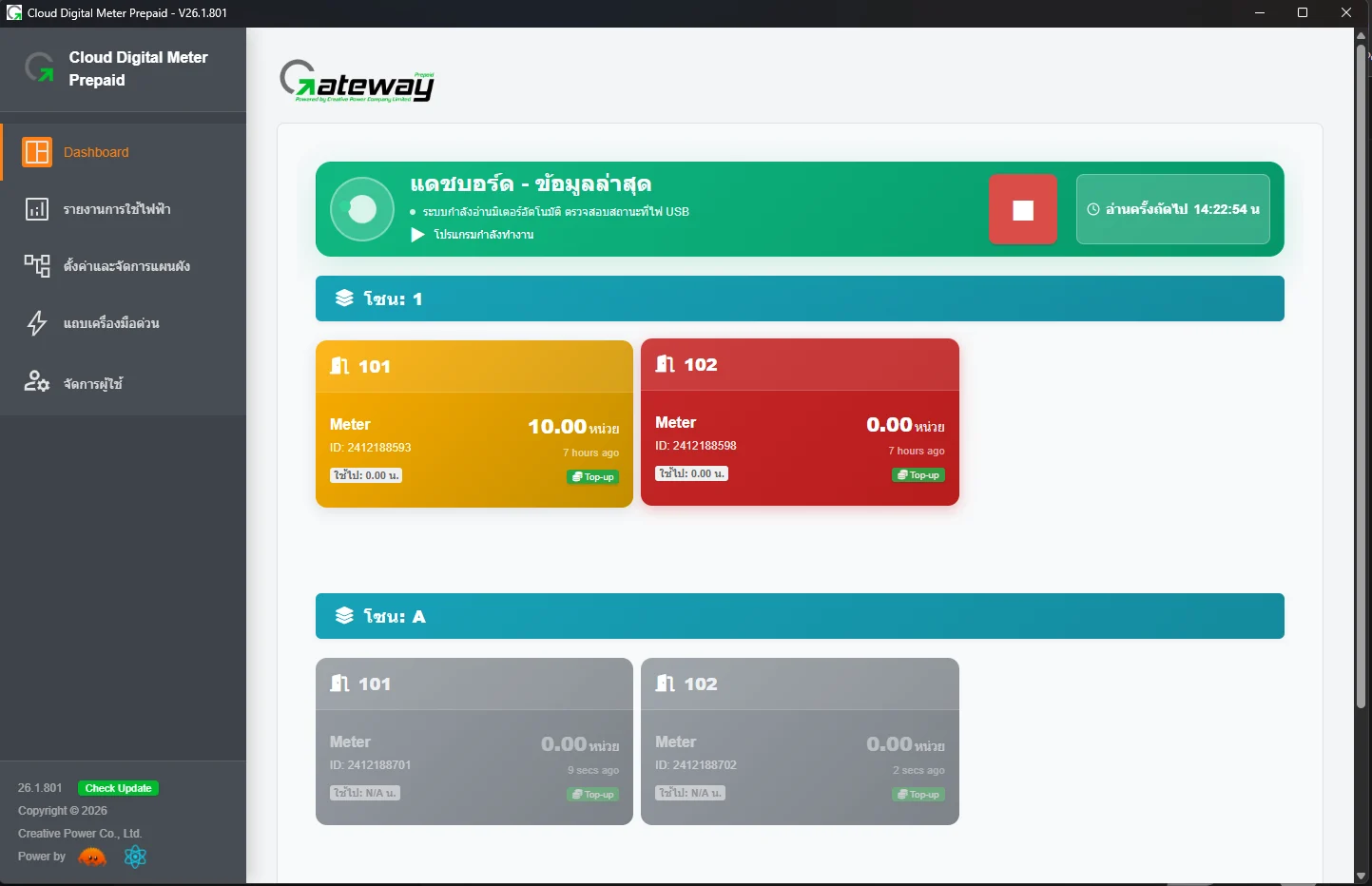
Dashboard page
Task Control reading meters
Task Control stopped

Step 2 · Dashboard

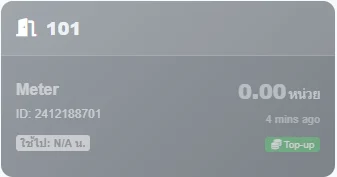
Check the card colour to know the status at a glance

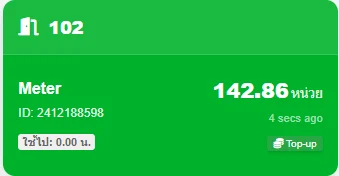
Green card
Green20 units or more: enough
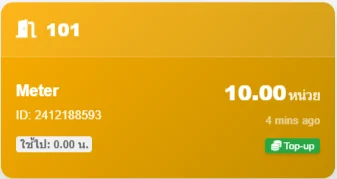
Yellow card
YellowRunning low: tell the customer to top up
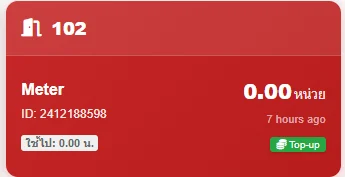
Red card
RedNo units left: power is cut
Grey card
GreyCannot read the meter: see the emergency plan

On the card: Room name · Meter ID · units remaining · units used · last read time

Step 3 · Top-up

Top-up 5 steps

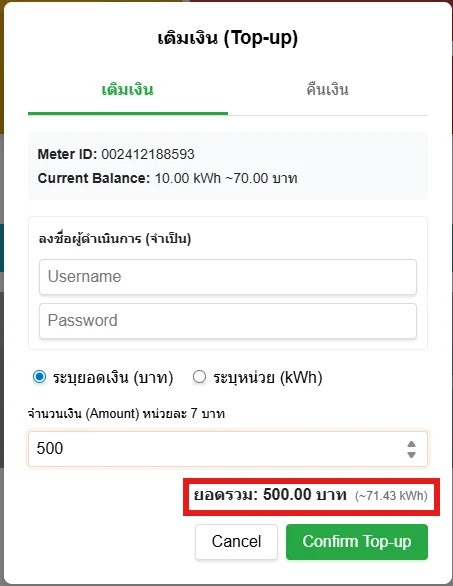
  1. Press the Top-up button on the room's card
  2. Enter Username / Password
  3. Choose to top up in baht or units (kWh)The system calculates the other value automatically
  4. Check the total, then press Confirm Top-up
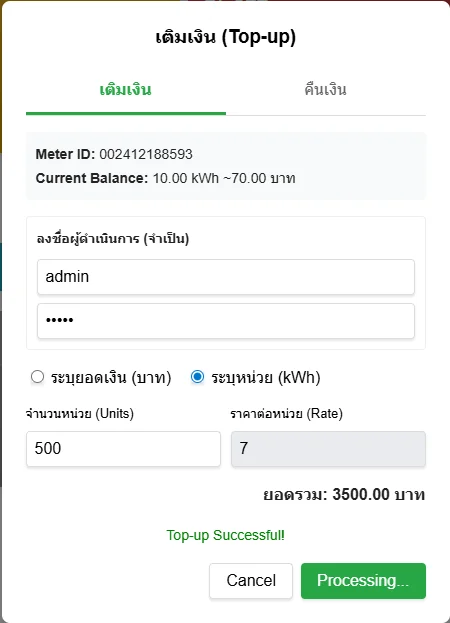
  5. Wait for the Top-up Successful messageThe card turns green
Top-up window
Top-up successful

Step 3 · Refund / withdrawal

Refund = full refund

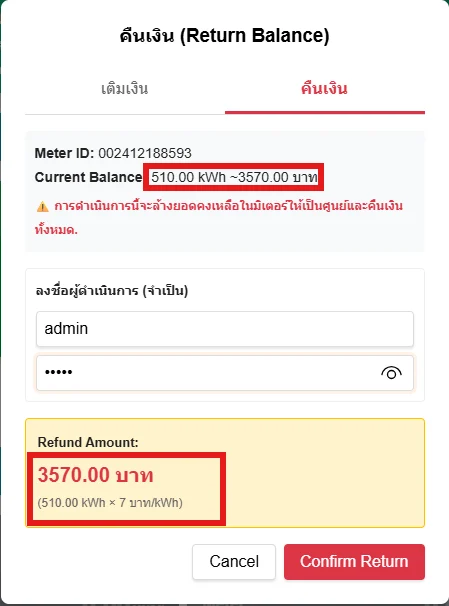
  1. Press Top-up on the card, then choose the Refund tab
  2. Enter Username / Password
  3. Check the Refund Amount
  4. Press Confirm Return, then give the customer the cash

The meter balance becomes 0, the card turns red and that room's power is cut

Refund window

Step 4 · Reports

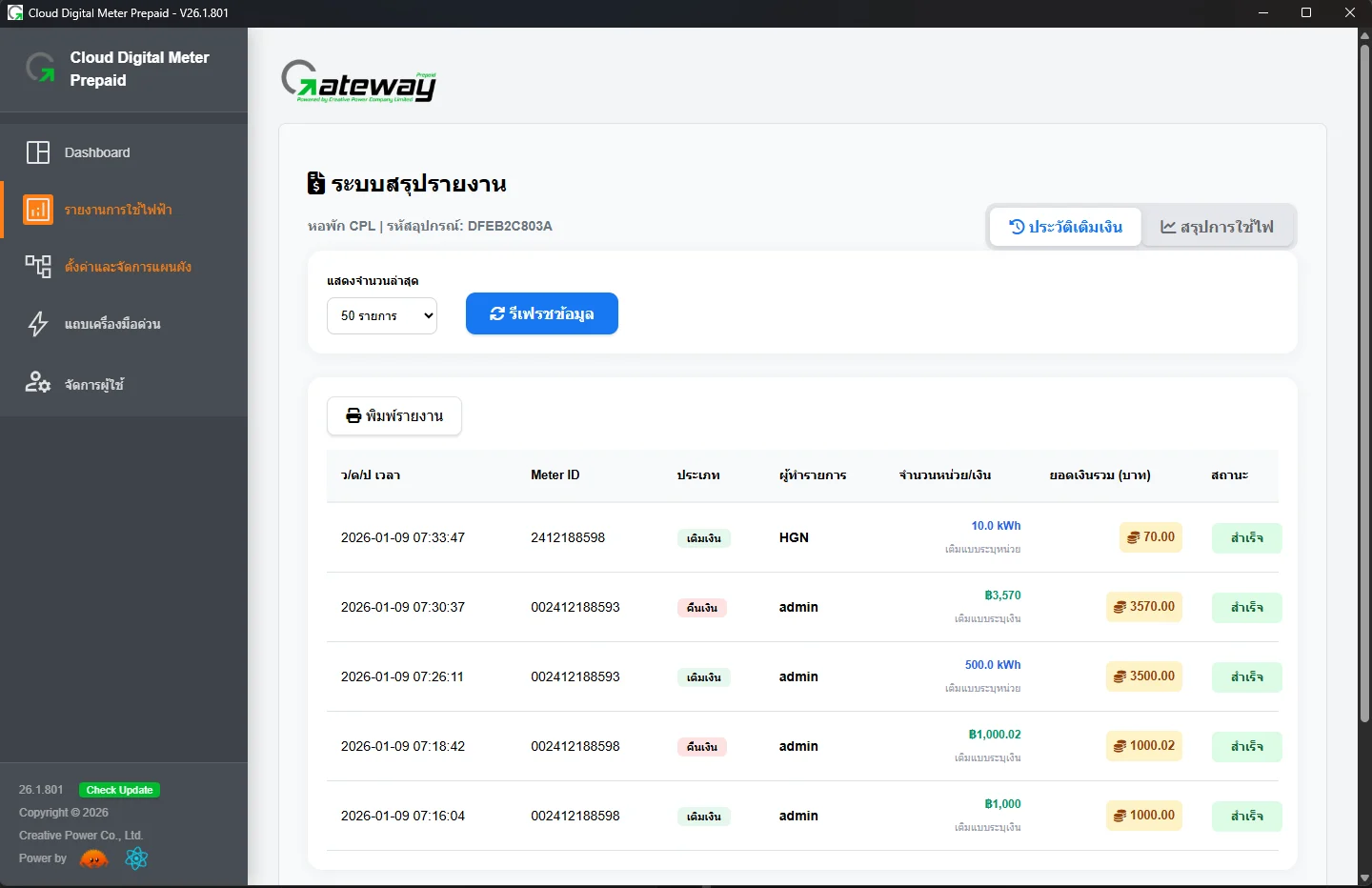
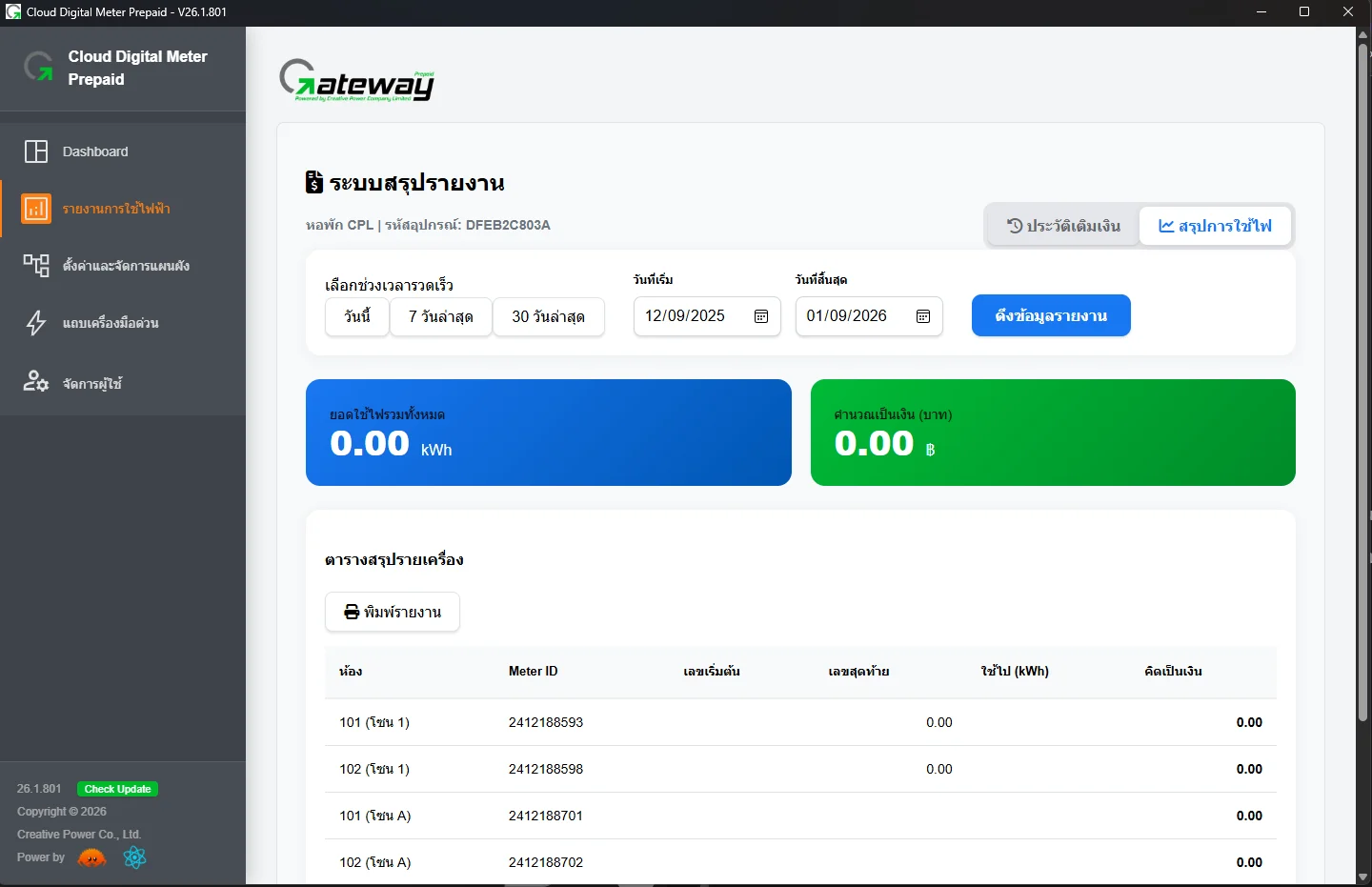
Reports 2 types

Top-up history

Top-up history Who made which transaction for which room, how much and when (online and offline)

Usage summary

Usage summary Choose a date range to see units used per room, and print the report

System admin · user management

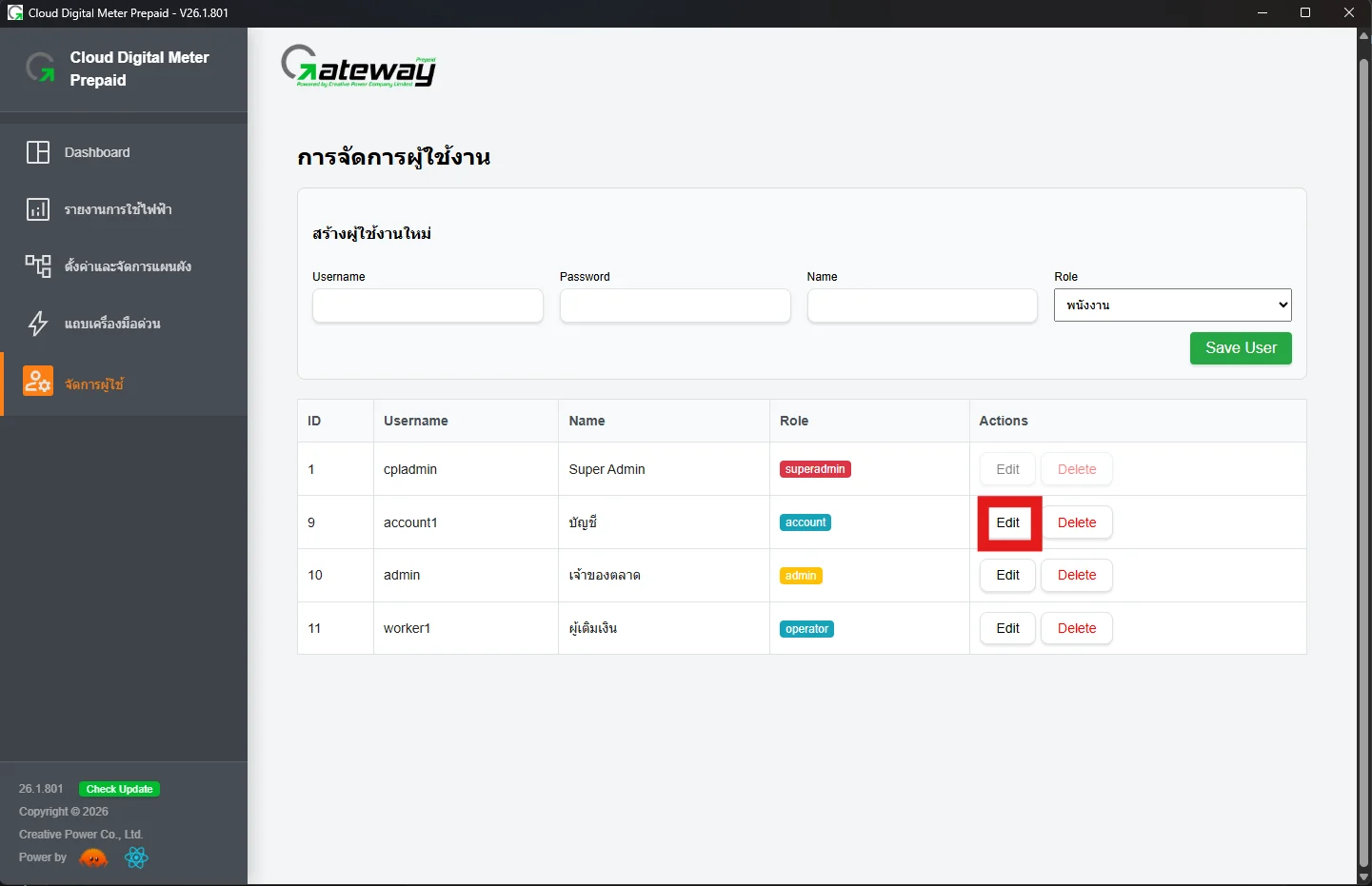
Who can top up is set here

  • User management menu (login required)
  • Add a user: Username · Password · Name · Role, then press Save User
  • Role: staff / accounting / system admin
  • Edit with Edit · delete with Delete

Every top-up records who made it; never share passwords

User management page

System admin · settings and layout

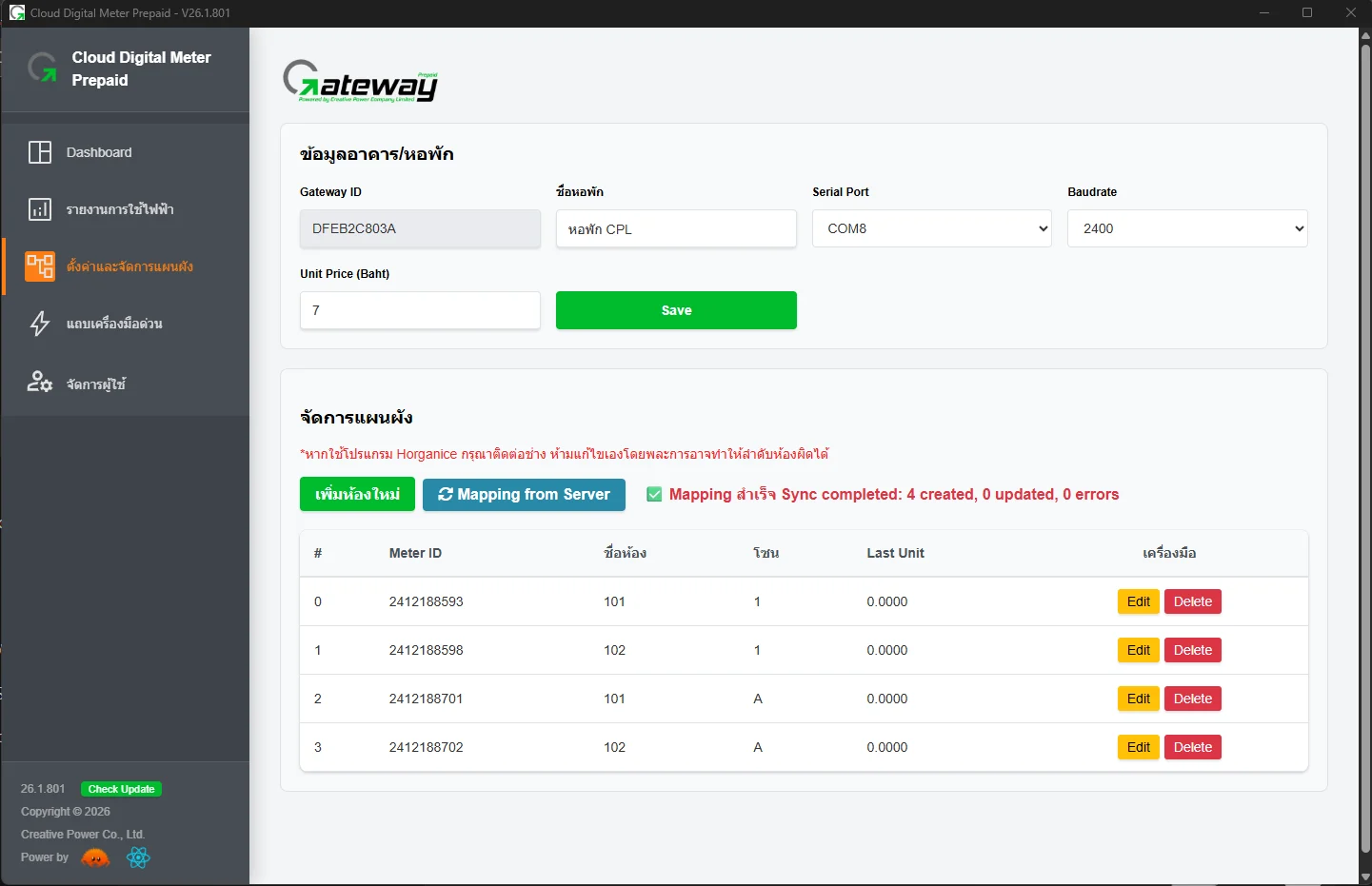
One-time setup before first use

  • Serial Port and Baudrate 2400The USB-RS485 converter's port
  • Unit Price per unit (THB), then press Save
  • Mapping from ServerPull the registered meter list from the cloud
  • or add manually: 12-digit Meter ID · room name · zone

Meter ID not matching the real meter = grey card

Settings and layout page

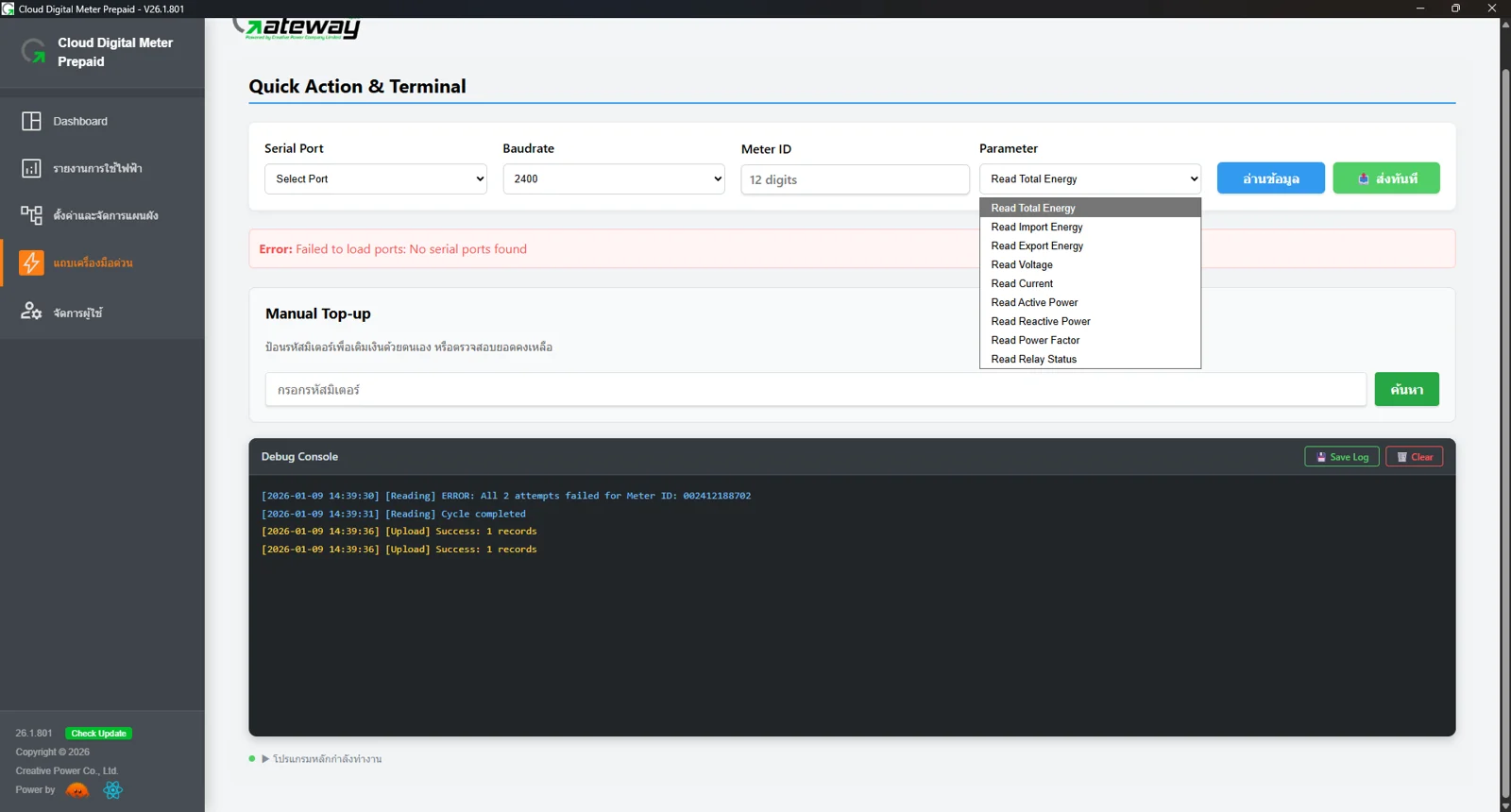
Technician / system admin · quick tools bar

Tools for troubleshooting

Quick Action and Debug Console page

Part 2 · Troubleshooting

Emergency plan
Remember these 3 first

The money is in the meterIf the cloud, internet or gateway goes down, power stays on; the meter supplies power until the balance runs out
Top-ups need the gatewayGateway down = no top-up through any channel; fix it before customers run out
Never top up twiceIf you're unsure of the result, always check the meter balance first

Emergency plan · always start at the gateway screen

Ask 4 questions in order

1Is the gateway screen on and the program running?Off / frozen Case 3Whole-building power cut Case 7
2Are the dashboard cards grey?All grey / a group grey Case 4One room grey Case 5
3Is the cloud website not updating?Gateway can open other websites Case 1No website opens Case 2
4Topped up but the balance didn't arrive?Check before topping up again Case 6

Emergency plan

Server (cloud) down

Symptoms cdm-prepaid.cplservice.com won't open or its data doesn't update, but the internet works normally

Check

  1. The gateway PC can open other websites = internet is fine
  2. The system website won't open from a phone (4G) either = server problem
  3. The dashboard on the gateway is still green and the last-read time still moves

First fix

  1. Customers can't top up via Horga: accept top-ups at the gateway screen instead (log in)
  2. No need to restart the gateway; data syncs itself when the server returns
  3. Note down transactions during this period and compare with the report later

Escalate Report to Creative Power with the Gateway ID and when it started

Emergency plan

Internet down

Symptoms The website doesn't update and the gateway PC can't open any website · Remote access from outside fails

Check

  1. Are the router / switch lights normal?
  2. LAN cable at the gateway PC is tight and the LAN port light blinks
  3. Debug Console shows ERROR on the [Upload] line

First fix

  1. Power-cycle the router and wait 2–3 minutes
  2. Re-plug the LAN cable or change the cable / port
  3. Meanwhile: top up at the gateway screen or via Remote over the local LAN
  4. Backup internet: phone hotspot or a SIM router

Escalate Internet provider / building IT · if it still doesn't sync after the internet returns (firewall), report to Creative Power

Emergency plan

Gateway failure

Symptoms Screen off / PC frozen / program won't open / Task Control bar grey, last-read time not moving

Check

  1. Is power reaching the PC / screen / UPS?
  2. Is the program open, and is the top bar green?
  3. Is the disk full? (delete old logs)

First fix

  1. Program frozen: close and reopen it, press ▶ to start reading
  2. PC frozen: restart it; the program opens by itself
  3. PC won't start: move the USB-RS485 to the spare PC, install the program, then Mapping from Server

Escalate A new PC = a new Gateway ID (tied to the MAC); Creative Power must register it before use

Emergency plan

Signal cable / USB-RS485 converter

Symptoms All cards grey, or a continuous group grey · shows "No serial ports found"

Check

  1. All grey: check the USB-RS485 converter is plugged in firmly and blinking
  2. Group grey: find the first grey room; the problem is before that room (loose cable / repeater without power)
  3. Quick Action: read the meter nearest the gateway

First fix

  1. Unplug and re-plug the USB, select the Serial Port again, then Save
  2. Tighten the A(+) B(−) terminals; never swap them
  3. Swap in the spare USB-RS485 converter / repeater

Escalate Cabling technician, when a cable is broken inside trunking or the whole line must be traced

Emergency plan

Meter failure

Symptoms Only one room's card is grey, others normal · meter display off · balance available but no power

Check

  1. Is the meter display on? No power = can't be read; check the upstream breaker
  2. The 12-digit Meter ID on the meter matches the layout
  3. Quick Action: Read Total Energy / Relay Status for that meter

First fix

  1. Wrong ID: correct it on the layout page
  2. Loose A/B at that meter: re-tighten
  3. Broken meter: swap in a spare, update the Meter ID, then top up the previous balance from the latest report

Escalate Power needed urgently: have an electrician connect directly for now and record the units · send the meter to Creative Power for a claim

Emergency plan

Topped up but the balance didn't arrive

Symptoms Pressed Confirm and it's stuck on Processing / shows Error / customer paid but power hasn't returned

Check

  1. Wait about 2 minutes (1 read cycle), then check the balance on the card
  2. Reports › Top-up history: is there a record, and what status?
  3. The real meter balance: meter display or Quick Action

First fix

  1. Balance arrived: done, don't top up again
  2. Balance missing and the report shows failed: top up once more
  3. Still missing: stop and go to Case 4 (cable) or 5 (meter)

Escalate Already topped up too much: report to your supervisor (refunds are full refunds only)

Emergency plan

Power cut / brownout

Symptoms Building power is cut, or the gateway switches off by itself often

Check

  1. When power returns, does the gateway PC start by itself?
  2. The program opens by itself and the top bar is green
  3. Cards regain their colours within about 5 minutes

First fix

  1. PC doesn't start by itself: switch it on and set the BIOS to power on when power returns
  2. Program doesn't appear: open it and press ▶
  3. Install a UPS for the gateway and router

Escalate Still grey after 10 minutes: go to Case 4 · PC won't start: go to Case 3

Emergency plan · prepare before anything happens

Spares every site should have

UPSfor the gateway and router
Spare USB-RS485 converterFails most often; you can swap it yourself
1–2 spare metersand 1 spare repeater
Spare gateway PCRegistered with Creative Power in advance
Data backupCopy the .cpl_app folder (data.db) once a month
People and channels2 or more people with top-up passwords · Remote Desktop tested

Emergency plan · reporting a problem

Report everything so it can be fixed fast

Contact support

Creative Power Company Limited

[email protected]

Site technician phone: ____________________