← HomeGATEWAY TRAINING▶ Watch with narration
CREATIVE POWER · LEARNING HUB

Look after every room's meter,
bill with confidence

CREATIVE GATEWAY Web training guide
From the dashboard and power cut/restore to billing, Energy Flow and the API
Start the 21 chapters →▶ Learn with narration (Thai audio)Open the full guide
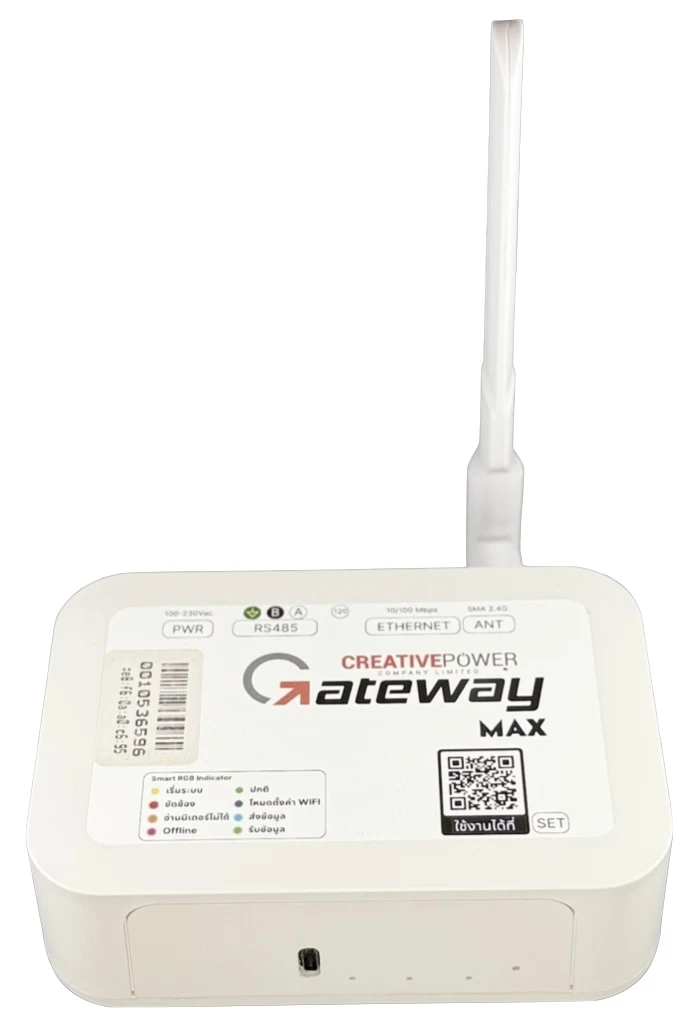
Gateway MaxMAX 200 meters · ECO 60 · MINI 30

Choose a topic

CREATIVE GATEWAY · 01 / 21

CREATIVE GATEWAY overview

The website for managing a project's meters and gateways

  • The website for managing a project's meters and gateways
  • Works with Gateway MAX · ECO · MINI
  • View energy units, cut/restore power, bill, report and use the API
  • Examples in the video use made-up data
Gateway MaxMAX 200 meters · ECO 60 · MINI 30
CREATIVE GATEWAY · 02 / 21

Sign-in and permissions

The menus you see depend on your account's permission level

  • Sign in with the Username / Password created by your administrator
  • Menus depend on the permission level
  • Super Admin · Admin (Owner) · Account (accounting) · User
  • My Profile: view/edit your details · Logout
CREATIVE GATEWAY · 03 / 21

Room dashboard

Blue = online · grey = offline

  • Choose a building from the list at the top
  • Rooms grouped by floor, with kWh (and water, if fitted)
  • Blue = online · grey = offline/no data
  • Click a room box to see its chart · Last status = last update time
CREATIVE GATEWAY · 04 / 21

Cut / restore room power

Always confirm the room number before pressing OK

  • Click the bulb icon on the room box
  • The system asks you to confirm switching power off / on first
  • Works with meters set to Cut-off Ability = can cut power
  • Grey bulb = cannot be controlled · see the result in On/Off History
CREATIVE GATEWAY · 05 / 21

Gateway Monitoring

Online = last data sent within 1 hour

  • Monitoring System menu (Super Admin)
  • Summary of buildings · gateways · online · offline
  • Online = last data sent within 1 hour
  • Search building / gateway name · filter by status · reload data
CREATIVE GATEWAY · 06 / 21

TV Dashboard (NOC)

Leave it open on the control-room screen

  • Opens in a new tab, for the control-room screen
  • Total · online · offline for the whole system
  • Refreshes itself every 15 minutes
  • Can switch to Light Mode
CREATIVE GATEWAY · 07 / 21

Gateway Management

Management → Gateway Meter

  • Management → Gateway Meter menu
  • Table of Gateway ID · Building · Location · Room
  • Device status: FW Version · Connection · Task · Free Heap
  • Manage = edit / manage meters · ADD NEW GATEWAY
CREATIVE GATEWAY · 08 / 21

Register a gateway

The baud rate must match the meters on the RS485 line

  • Choose the Gateway Model by meter type
  • Building Name · Organization · Gateway ID
  • Baud rate matches the meters on the RS485 line
  • Price THB/unit · VAT 7% · progressive rate · water
CREATIVE GATEWAY · 09 / 21

Progressive Rate

Progressive (tiered) electricity rate

  • Open from the Gateway edit page → Progressive Rate
  • Set unit ranges: start – end
  • Price in THB/unit for each range
  • Ranges must be continuous, with no gaps or overlaps
CREATIVE GATEWAY · 10 / 21

Add meters

Gateway → Manage → Register New Meter

  • Gateway → Manage → Register New Meter
  • Type the Meter No. (S/N) or scan the QR
  • Room Name · Floor · Cut-off Ability
  • Energy Reg · Function code · Data Type · Byte Order · Multiply from the meter manual
CREATIVE GATEWAY · 11 / 21

Customers / buildings

Building details shown on the invoice

  • Customer / Building menu → Add Customer
  • Company details · Tax ID · address · contact · logo
  • Payment account + QR code for payment
  • Footer notes — all shown on the invoice
CREATIVE GATEWAY · 12 / 21

Create building admin accounts

Customer List → Add administrator

  • Customer List → Add administrator
  • Choose a role: Super Administrator · Admin (Owner) · Account (accounting)
  • First name · last name · email · phone · username · password
  • Save the user · role / password can be changed later
CREATIVE GATEWAY · 13 / 21

Map rooms ↔ tenants

Yellow link icon = room is mapped

  • Dashboard → link icon on the room box
  • Check project/building · room/floor · Meter ID
  • Choose the tenant and click Save
  • Yellow link icon = room is mapped · mapping can be removed
CREATIVE GATEWAY · 14 / 21

Process bills

24-hour time, e.g. 09:00 or 23:59

  • Billing / Invoices menu
  • Choose the gateway + date – time range (24 h)
  • Click Process → cards per room for electricity / water
  • Invoice per room · issue all bills · Excel
CREATIVE GATEWAY · 15 / 21

Invoices

Always check the totals before sending to tenants

  • Header: logo, building details, customer name, room, number, date
  • Electricity: latest reading − previous reading = units used
  • Including VAT 7% · grand total
  • Payment account + Scan to Pay · Print / PDF
CREATIVE GATEWAY · 16 / 21

Energy Flow Config

Start at the transformer (root), then add child points

  • Energy Flow Config menu (Super Admin / Admin)
  • Choose a dashboard and add connection points
  • Name · source (parent) · gateway · meter ID · order
  • Start at the transformer (root) · can be suspended / enabled
CREATIVE GATEWAY · 17 / 21

Energy Flow Dashboard

Sankey chart: the thicker the line, the more energy used

  • Choose a dashboard + From Date – To Date
  • Click RELOAD
  • Sankey chart: thick line = high use
  • Create a dashboard / rename it
CREATIVE GATEWAY · 18 / 21

Energy Report

Peak · Off-Peak · Holiday

  • Site Name · Meter · Group By (Daily / Monthly / Yearly)
  • Unit kWh / kW → view report
  • Chart with an average line
  • Peak · Off-Peak · Holiday · Summary table · EXPORT EXCEL
CREATIVE GATEWAY · 19 / 21

On/Off History and System Logs

Check for data gaps before billing

  • On/Off History: count power on / off per room · view history
  • System Logs: cumulative energy chart + raw data by time
  • Use it to check for data gaps before billing
  • EXPORT EXCEL / CSV
CREATIVE GATEWAY · 20 / 21

API Keys and Data Query

The Secret Key is shown only once

  • API Management → CREATE API KEY
  • Set a Key Name + choose the allowed devices
  • The Secret Key is shown only once · Revoke takes effect immediately
  • Data Query: Endpoint getdata / getdatahourly / getdatadaily
CREATIVE GATEWAY · 21 / 21

Check before handover

Tick every item and you're ready to hand over

  • All gateways ONLINE · meters and rooms correct
  • Test cut / restore · check On/Off History
  • Building details, payment account and electricity rates match the contract
  • Run one test billing round and check the totals